Unleash Your Inner Pro: The Photo Editing Apps Locals Don't Want Tourists to Know About
I remember it like yesterday. Standing on the sun-drenched cliffs of Santorini, camera in hand, feeling like I was capturing pure magic. The whitewashed villages clinging to the caldera, the impossibly blue Aegean Sea stretching to the horizon, the vibrant bougainvillea spilling over ancient walls – it was all there, right in front of me.
Later that evening, back in my charming Oia cave hotel, I eagerly scrolled through my camera roll. And that's when the deflation hit. My photos, while decent, just didn't pop. They lacked that ethereal, almost painterly quality I saw on local Instagram feeds, on postcards, even on the social media of that incredibly chic Greek girl I'd seen sipping an espresso earlier. My blues weren't that blue, my whites weren't that crisp, and the overall vibe was, well, a bit… flat.
It was my 'aha!' moment. It wasn't just about having a fancy camera (though mine was pretty good). It wasn't just about composition (though I tried my best). It was about the secret sauce – the post-processing, the subtle enhancements, the digital magic that transformed a good photo into a breathtaking one. And I quickly realized that the locals, the ones who truly understood how to showcase their stunning island, had mastered this art with a handful of powerful, often underestimated, mobile apps.
That trip ignited a quest. I spent hours dissecting popular travel feeds, chatting with local photographers (often bribing them with a round of drinks), and experimenting with countless apps. What I discovered was a treasure trove of tools that, once mastered, could elevate my travel photography from tourist snapshots to magazine-worthy masterpieces, all from the convenience of my phone.
And today, my fellow travelers, I'm spilling the beans. This isn't just about slapping a filter on your photos; it's about understanding the subtle power of these apps to bring out the true essence of your travel memories. These are the apps that empower you to create images so captivating, so vibrant, so real, that even the locals might wonder how you did it.
Let's dive in.
Why Your Photos Don't Pop (Yet): The Local's Edge
Before we get to the apps, let's understand why your raw photos might not be matching your memories. Our eyes are incredible instruments, capable of perceiving vast dynamic ranges and subtle color nuances that cameras, especially phone cameras, often struggle to replicate. A stunning sunset might look washed out, a vibrant market muted, a historical building crooked.
Locals, particularly those in the tourism or creative industries, understand this inherently. They know that the initial capture is just the first step. Their "edge" comes from a keen eye for detail and the knowledge of how to use editing tools to:
- Correct imperfections: Straighten horizons, remove distracting elements (yes, even other tourists!).
- Enhance natural beauty: Boost colors without making them look artificial, bring out details in shadows and highlights.
- Create mood and atmosphere: Add warmth to a sunrise, coolness to a misty morning, or a vintage feel to an old city street.
- Maintain consistency: Develop a signature style that makes their feed cohesive and visually appealing.
It's not about creating fake images; it's about bringing your photos closer to what you felt and saw in that moment. It's about telling a more compelling visual story.
The Foundation Builders: Essential Apps for Every Travel Photographer
These are the workhorses, the apps that form the bedrock of any serious mobile photo editing workflow. If you only download two apps from this list, make them these.
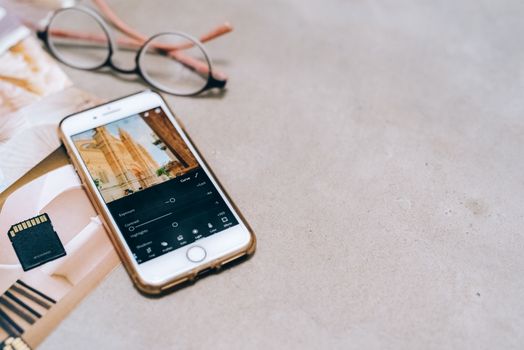
1. Adobe Lightroom Mobile: The Industry Standard in Your Pocket
Where I've used it:
From the bustling markets of Marrakech to the serene temples of Kyoto, Lightroom Mobile has been my consistent companion. It's especially invaluable for landscapes and complex lighting situations, like that unforgettable sunrise over the Bagan pagodas in Myanmar.
Why locals love it:
Lightroom is the professional standard for a reason. Its mobile counterpart offers incredibly powerful, non-destructive editing capabilities, meaning you can always revert to your original photo. The ability to shoot in DNG (RAW) format on your phone means you capture far more detail and dynamic range, giving you more flexibility in the edit. Locals use it for precise color grading, exposure adjustments, and to apply custom presets that give their entire feed a cohesive, signature look.
Key Features & How to Use Them:
* RAW Editing: Shoot in DNG (if your phone supports it) for maximum editing flexibility.
* Presets: Apply one-tap filters, then fine-tune. You can even create and save your own! This is where the magic happens for consistent feeds. Many local influencers sell their custom presets.
* Selective Adjustments: Use brushes, radial, and linear gradients to edit specific parts of your image (e.g., brighten a face, darken a sky) without affecting the whole picture. This was a game-changer for my photos of the colourful houses in Burano, Italy, allowing me to boost individual house colours without over-saturating the entire scene.
* Geometry Tools: Crucial for straightening crooked buildings or horizons. That leaning Pisa Tower? Fixed!
* Noise Reduction & Sharpening: Clean up grainy low-light shots and add crispness where needed.
Price:
Free for basic editing features. A paid Adobe Creative Cloud subscription (around $9.99/month, often bundled with Photoshop) unlocks cloud storage, premium features, and syncing across devices – absolutely worth it if you're serious about your travel content.
2. Snapseed: Google's Free Powerhouse for Quick Fixes
Where I've used it:
This is my go-to for on-the-fly edits, especially when I need to quickly remove a distraction or fix a perspective issue before posting. It saved many a photo from the crowded streets of Ho Chi Minh City, where unexpected elements always seem to sneak into the frame.
Why locals love it:
Snapseed is incredibly intuitive and packed with features usually found in paid apps. It's fantastic for quick, powerful edits and excels at "healing" imperfections. Locals appreciate its speed and precision for those tricky last-minute adjustments.
Key Features & How to Use Them:
* Healing Brush: This is pure magic. Easily remove unwanted objects like power lines, distracting tourists, or litter from your frame with a few taps. I once used it to perfectly erase a stray plastic bag from my otherwise pristine shot of a Thai beach.
* Selective Adjustments: Similar to Lightroom but often even more intuitive for pinpoint edits. Tap on an area, then swipe to adjust brightness, contrast, and saturation only in that spot.
* Perspective Tool: Crucial for correcting distorted architecture. If your grand shot of the Colosseum looks like it's falling over, Snapseed can straighten it out.
* Brush Tool: Precisely paint in exposure, saturation, or temperature adjustments.
* Expand: Intelligently expands the canvas, perfect for correcting slightly off-center compositions or creating a wider aspect ratio for Instagram.
Price:
Completely FREE! No ads, no in-app purchases. A true gem.
The "Secret Sauce" Apps: Elevating Beyond the Basics
Once you've got your foundation built, these apps add that extra layer of polish, mood, and unique aesthetic that truly makes your photos stand out.
3. VSCO: The Master of Mood and Film-Like Aesthetics
Where I've used it:
VSCO is my secret weapon for adding a specific mood to my photos – a vintage feel for the streets of Havana, a muted elegance for the misty mountains of Sapa, Vietnam, or a vibrant warmth for the colourful houses of Lisbon.
Why locals love it:
VSCO is renowned for its stunning, film-inspired filters (called "presets" in VSCO). These aren't your average Instagram filters; they're nuanced, sophisticated, and designed to emulate the look of classic film stocks. Locals use VSCO to give their feeds a cohesive, artistic, and often melancholic or nostalgic vibe that feels incredibly authentic.
Key Features & How to Use Them:
* Extensive Preset Library: Experiment with different film looks – from faded vintage to punchy modern. Find a few you love and stick with them for a consistent feed. My go-to for European cityscapes is often one of their A-series presets, slightly desaturated with a hint of warmth.
* Advanced Editing Tools: Beyond presets, VSCO offers robust tools for fine-tuning exposure, contrast, saturation, grain, fade, and split tone.
* Recipes: Save your favorite combination of edits as a "recipe" for one-tap application to future photos. This is how you build a consistent aesthetic.
* HSL (Hue, Saturation, Luminance): Precisely adjust individual colors in your image. Want greener trees or bluer skies without affecting skin tones? This is your tool.
Price:
Free for a selection of basic presets and editing tools. VSCO X membership (around $29.99/year or $7.99/month) unlocks their entire library of over 200+ presets and advanced features.
4. Tezza App / Prequel: Trendy Aesthetics & Dynamic Effects
Where I've used it:
For those moments when I want to add a trendy, almost editorial flair to my photos – think fashion-forward city shots in Paris, vibrant beach days in Bali, or capturing the energy of a bustling New York street.
Why locals love them:
These apps are popular with a younger, more trend-conscious demographic, including local fashion bloggers and lifestyle influencers. They offer unique, highly curated filters and effects that go beyond traditional photo editing, adding elements like light leaks, dust, grain, and retro video effects. They're about creating a vibe.
Key Features & How to Use Them (Tezza App example):
* Curated Filters: Tezza's filters are designed by influencer Tezza Barton, known for her distinctive aesthetic. They're often warm, slightly desaturated, and have a beautiful, cohesive feel.
* Overlays & Textures: Add subtle light leaks, dust, or film grain for a vintage touch. This can make a simple shot of a coffee cup in a cute cafe feel incredibly stylish.
* Templates & Collages: Perfect for creating engaging Instagram Stories or multi-photo layouts.
* Video Editing: Many of these apps also offer powerful video editing tools with similar filters, extending your aesthetic consistency to your reels and stories.
Price:
Both apps offer free trials and basic features, but their full potential is unlocked with a subscription (Tezza App: around $5.99/month or $39.99/year; Prequel: similar pricing).
5. TouchRetouch: The Ultimate Object Remover
Where I've used it:
This app has saved more of my photos than I can count. From power lines ruining a perfect view of Mount Fuji to removing a stray tourist from my otherwise pristine shot of the Trevi Fountain (yes, it's possible!), TouchRetouch is a miracle worker.
Why locals love it:
Even locals have to contend with modern distractions in historical or natural settings. This app allows them to quickly and seamlessly remove unwanted elements, preserving the beauty and integrity of their chosen scene. It's about achieving that "untouched" look even in a busy environment.
Key Features & How to Use Them:
* Object Removal: Simply brush over an unwanted object, and the app intelligently fills in the background. It's shockingly good, especially on simpler backgrounds like sky, water, or textured walls.
* Line Removal: Excellent for getting rid of telephone wires, power lines, or even scratches on surfaces.
* Mesh Removal: Perfect for removing fences or mesh from photos, making it look like you shot through an open space.
* Spot Removal: Quick fixes for small blemishes or dust spots.
Price:
A one-time purchase, typically around $1.99 - $3.99, making it an incredible value for its power.
The Niche Maestros: Specialized Tools for Specific Needs
Sometimes, you need a very specific tool for a very specific job. These apps fill those gaps.
6. Facetune / YouCam Perfect (Subtle Enhancements, Not Just Selfies!)
Where I've used it:
While often associated with selfies, I've found these apps incredibly useful for subtle enhancements in broader travel photos. Think: slightly brightening a gloomy sky, subtly straightening a wonky building line, or even making a subject's shirt color pop just a touch. I’ve used Facetune to refine portraits taken in bustling markets, ensuring the focus remains on the person while the background remains vibrant.
Why locals love them:
Locals, especially those featuring themselves or others in their travel content, use these for quick, subtle touch-ups. The key is subtlety. It’s not about transforming reality, but refining it – think removing a stray hair, brightening eyes, or gently smoothing skin for a natural, polished look. They also offer tools to subtly adjust elements within the scene, not just people.
Key Features & How to Use Them (Facetune example):
* Whiten: Not just for teeth! Use it sparingly to brighten whites in architecture or clothing.
* Smooth: Gently smooth out rough textures on walls or roads, or even calm choppy water in a distant shot.
* Reshape: Use with extreme caution and subtlety! This can be used to straighten a slightly bent lamp post or refine the curve of a distant hill, not for drastic alterations.
* Details: Sharpen specific elements like eyes or intricate patterns on a building.
* Patch: A more advanced healing tool for intricate object removal or cloning.
Price:
Free for basic features, but premium subscriptions (Facetune: ~$7.99/month, ~$35.99/year) unlock all tools.
7. PicsArt / Canva: Creative Overlays & Graphic Design for Social Media
Where I've used it:
When I want to go beyond a simple photo and create something truly unique for my Instagram Stories or a composite image. I've used PicsArt to create double exposure effects with a cityscape over a portrait, or Canva to design beautiful quote graphics with my travel photos as the background.
Why locals love them:
These aren't just photo editors; they're creative suites. Locals use them to add text, stickers, graphic elements, create collages, or even remove backgrounds for product shots or intricate compositions. They're perfect for creating highly shareable, branded content.
Key Features & How to Use Them (PicsArt example):
* Collages & Grids: Create visually appealing multi-photo layouts.
* Stickers & Text: Add fun, relevant stickers or stylish text overlays to your photos.
* Background Eraser: Remove the background from a subject to place them in a different scene or create a transparent PNG.
* Double Exposure: Blend two photos together for artistic effects.
* Drawing Tools: Unleash your inner artist with brushes and colors.
* Effects & Filters: A vast library of filters, including artistic and glitch effects.
Price:
Free for many features, with PicsArt Gold (around $4.66/month or $55.99/year) or Canva Pro (around $12.99/month or $119.99/year) unlocking premium content and advanced tools.
Beyond the Apps: Pro Tips for Truly Viral Travel Photos
Having the tools is one thing; knowing how to use them effectively is another. Here are a few timeless tips to truly elevate your travel photography, no matter which apps you choose:
- Shoot in RAW/DNG: If your phone allows it (Lightroom Mobile, Halide, Moment apps), always shoot in RAW. This preserves maximum image data, giving you far more flexibility in editing.
- Understand Light: The best editing in the world can't save a poorly lit photo. Shoot during golden hour (sunrise/sunset) for soft, warm light, or seek out open shade for even, diffused light.
- Master Composition Basics: Rule of Thirds, leading lines, symmetry, framing – these principles guide the viewer's eye and make your photos more engaging. Even a simple shot of a local street scene can become captivating with good composition.
- Don't Over-Edit: The goal is to enhance, not to create something artificial. The "local" aesthetic often feels natural, just incredibly polished. Avoid over-saturation, extreme HDR, or overly dramatic effects unless that's your specific artistic style.
- Develop a Consistent Style: Find a few presets or editing techniques you love and apply them consistently across your feed. This creates a recognizable brand and makes your profile more visually appealing.
- Tell a Story: Your photos should evoke emotion, curiosity, or a sense of place. What story are you trying to tell about that hidden alley in Rome or that vibrant market in Vietnam?
- Backup Your Photos: Always back up your original photos to cloud storage (Google Photos, iCloud, Dropbox) before you start editing.
Your Journey to Jaw-Dropping Travel Photos Starts Now!
The secret is out. Those effortlessly perfect travel photos you admire? They're not always about expensive gear or professional photographers. More often than not, they're the result of a keen eye, a little patience, and the strategic use of these powerful mobile photo editing apps.
My journey from "decent" to "damn, that's good!" travel photos started with embracing these tools. From salvaging an underexposed shot of the Northern Lights in Iceland with Lightroom to seamlessly removing a rogue tourist from my shot of a deserted beach in the Philippines with TouchRetouch, these apps have been instrumental in transforming my travel memories into shareable, cherished art.
So, go ahead. Download a few of these apps, experiment, and start transforming your travel pics from ordinary to extraordinary. The locals might not want you to know their secrets, but now you're in on them. Get ready to make your next travel post truly unforgettable.
What are your favorite photo editing apps for travel? Share your secrets and transformed pics with us using #TripsoraTravelHacks!
---