The Secret Sauce: Photo Editing Apps That Transform Travel Pics Instagram Influencers Don't Want You To Know
Remember that sunset in Santorini? The one that painted the sky in hues of fiery orange and soft lavender, leaving you utterly breathless? You snapped a pic, convinced you’d captured pure magic. But then you looked at your phone screen, and… oof. It looked dull, flat, and nowhere near as vibrant as the real thing. Sound familiar?
For years, I felt the same frustration. My travel memories, so vivid in my mind, just didn't translate to my camera roll. I'd scroll through Instagram, mesmerized by fellow travelers’ seemingly effortless, jaw-dropping shots – crystal clear waters, perfectly composed cityscapes, food that looked good enough to eat right off the screen. I'd wonder, how do they do it? Is their phone camera just infinitely better than mine? Are they all secretly professional photographers with expensive gear?
The truth, my fellow adventurers, is far simpler, more accessible, and honestly, a bit of an open secret. It's not about expensive cameras or innate talent (though both help!). It's about post-processing. It's about the magic that happens after the click, in the digital darkroom of powerful, user-friendly photo editing apps – many of which are free or surprisingly affordable.
Instagram influencers aren't born with a filter in their eye; they master tools. And today, I’m spilling the beans on the very apps that have transformed my own travel photography from "meh" to "OMG, where is that?!" Get ready to ditch the average and embrace the extraordinary.
1. The Essential All-Rounders: Your Daily Drivers for Digital Alchemy
Think of these as your foundational toolkit. If you only download two apps from this list, make them these. They’re robust, versatile, and capable of handling almost any editing task you throw at them.
Adobe Lightroom Mobile: The Industry Standard, Now in Your Pocket
If you’ve ever heard a pro photographer talk about editing, Lightroom probably came up. The good news? Its mobile counterpart is incredibly powerful, and a surprisingly robust version is free to use! While the paid subscription (Adobe Creative Cloud Photography Plan, around $9.99/month, often bundled with desktop Lightroom and Photoshop) unlocks cloud sync and premium features like selective adjustments and healing, the free version still offers a massive array of tools.
Why it’s a game-changer:
* Presets: Oh, the presets! These are pre-saved editing formulas that can instantly give your photo a consistent look and feel. Influencers often create or buy custom presets to maintain a cohesive aesthetic across their feed. I’ve developed a few "Tripsora" presets that I apply to all my photos – a warm, slightly desaturated look for desert landscapes from my trip to Morocco, and a vibrant, crisp preset for the turquoise waters of the Maldives. It’s a huge time-saver and ensures brand consistency.
* HSL (Hue, Saturation, Luminance) Adjustments: This is where the real magic happens. Want to make the blues of the Aegean Sea pop without affecting skin tones? Just tap on the blue slider in HSL and increase its saturation and luminance. Want to mute the distracting reds of a tourist's shirt in the background? Decrease the red saturation. This level of control is unparalleled on mobile. I used this extensively to bring out the rich terracotta hues of the roofs in Lisbon and to make the lush greens of Costa Rica truly sing.
* Selective Edits (Premium): Need to brighten just a face, or darken an overly bright sky? With the premium version, you can apply adjustments to specific areas using brushes, radial filters, and linear gradients. This is how influencers make certain elements stand out without over-processing the entire image. I once used a radial filter to brighten just my face in a dim café shot in Paris, making me pop against the moody background.
Practical Tip:
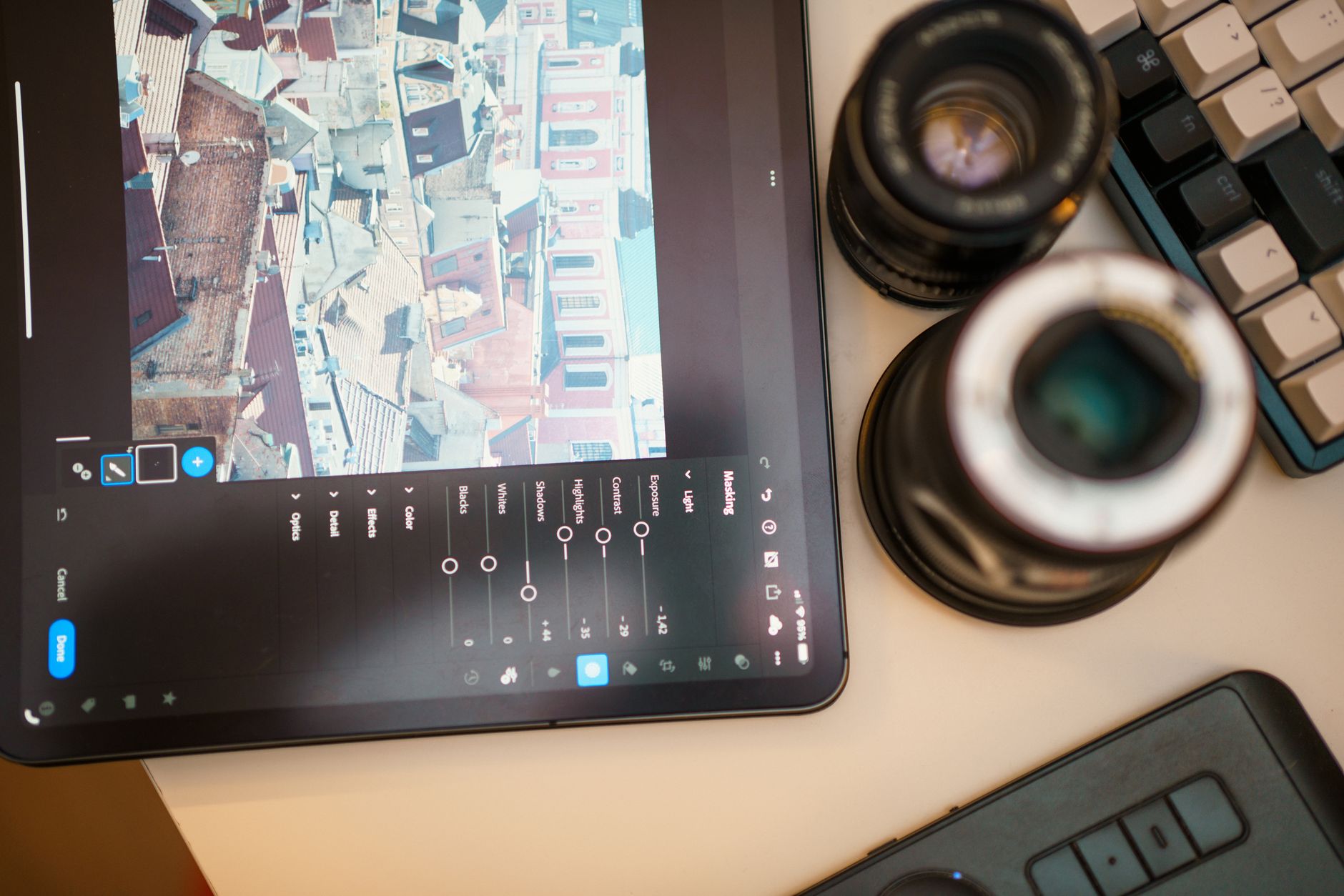
Start by adjusting exposure, highlights, and shadows. Then dive into the HSL panel. Even small tweaks here can dramatically change the mood of your photo.
Snapseed: Google’s Free Powerhouse for Precision
Don’t let the fact that it’s free fool you; Snapseed (available on iOS and Android) is an absolute beast. Developed by Google, it offers a suite of professional-grade editing tools in a remarkably intuitive interface. I often use Snapseed for specific tasks that Lightroom might make a bit more fiddly.
Why it’s a game-changer:
* Selective Adjustments (Control Points): Snapseed’s "Selective" tool is genius. You can drop a "control point" on a specific area of your photo and then adjust brightness, contrast, saturation, and structure only for that spot. This is incredible for fixing small, problematic areas. I used this to brighten the intricate details of a temple carving in Cambodia that was in shadow, without affecting the rest of the sunlit scene.
* Healing Brush: This tool is your best friend for removing unwanted elements. A stray piece of litter? A distracting power line? A photobombing tourist? The healing brush can often make them disappear as if they were never there. I’ve used it to remove an unsightly plastic bottle from a pristine beach shot in Thailand and to erase a distracting sign from an otherwise perfect shot of the Colosseum. It’s not always perfect, especially with complex backgrounds, but it’s shockingly effective for most minor nuisances.
* Perspective Correction: Ever take a photo of a tall building, and it looks like it’s leaning backwards? Snapseed’s "Perspective" tool can fix that distortion, making lines perfectly straight and vertical again. This is essential for architectural photography and ensuring your horizons are always level. My crooked shots of the Empire State Building finally stood tall and proud thanks to Snapseed.
Practical Tip:
Master the healing brush. It’s your secret weapon against photo imperfections. Also, try the "Tune Image" tool for quick overall adjustments before diving into more specific edits.
2. The Creative Powerhouses: Adding That Extra Sparkle and Vibe
Once you've got your basics down, these apps help you infuse your photos with personality, style, and that distinct "vibe" that makes an influencer's feed instantly recognizable.
VSCO: Curated Filters for a Consistent Aesthetic
VSCO (pronounced "vis-co," available on iOS and Android) isn’t just an editing app; it’s a community and an aesthetic. Known for its gorgeous, film-like filters, it offers a sophisticated alternative to Instagram's built-in options. While many filters are free, a VSCO membership (around $29.99/year) unlocks hundreds more, plus advanced editing tools.
Why it’s a game-changer:
* Artistic Filters: VSCO's filters are designed to emulate classic film stocks, offering a more nuanced and professional look than typical app filters. They can instantly transform the mood of a photo – from bright and airy to dark and moody, vintage, or modern. I love using their "A" series filters for a clean, minimalist feel on my Scandinavian travel photos, and the "C" series for punchy, vibrant shots of tropical destinations.
* Grain and Fade: These subtle adjustments are key to achieving that coveted "film look." Adding a touch of grain can make a digital photo feel more organic and less sterile. A slight fade can soften the blacks, giving a dreamy, nostalgic quality. I often add a whisper of grain to my rainy-day shots in London to enhance their atmospheric charm.
* Recipes: Save your favorite combination of edits as a "recipe" (similar to a preset) so you can apply it consistently to future photos. This is crucial for maintaining a cohesive Instagram feed.
Practical Tip:
Don't just slap on a filter. Apply it, then adjust its intensity. Then go into the manual editing tools (exposure, contrast, saturation, etc.) to fine-tune it to your specific photo.
Facetune/YouCam Perfect: Subtle Enhancements for Travel Portraits
Wait, aren't these for selfies? Yes, but savvy influencers also use them for subtle, ethical enhancements in their travel portraits. Both Facetune (iOS/Android, Facetune2 offers a free version with in-app purchases or a subscription starting around $6.99/month) and YouCam Perfect (iOS/Android, free with ads, premium subscription around $5.99/month) offer tools that can polish a travel shot without making it look fake.
Why it’s a game-changer:
* Smoothing & Detail: After a long flight, sometimes your skin just isn't cooperating. A subtle touch of smoothing (not blurring!) can even out skin tone. Conversely, the "Details" tool can sharpen specific elements like eyes or intricate patterns on clothing, making them pop. I've used this to subtly refine my travel portraits after a red-eye flight to Japan, making me look refreshed and ready for adventure.
* Whitening: For those brilliant smiles against stunning backdrops, a touch of teeth whitening can make a big difference. Again, subtlety is key!
* Reshape/Refine: This isn't about drastically changing your appearance. It's for fixing minor distortions. Did your wide-angle lens make your head look a little stretched? Or perhaps a wonky horizon needs a tiny nudge? These tools can help. I've used the "Reshape" tool in Facetune to ever-so-slightly straighten a leaning lamppost in the background of a street shot in Rome, ensuring the composition felt balanced.
Ethical Note:
The line between enhancing and misrepresenting can be blurry. My rule of thumb: If it corrects a camera distortion or makes me look like "my best self" on a good day, it's fine. If it creates a reality that doesn't exist, it's a no-go. Use these tools for gentle refinements, not extreme alterations.
3. Beyond the Basics: Special Effects & Artistic Touches
Ready to get truly creative and make your photos stand out from the crowd? These apps offer unique functionalities that can elevate your images to an artistic level.
PicsArt: The Creative Playground for Composites and Overlays
PicsArt (iOS/Android, free with ads, Gold subscription for $4.66/month billed annually) is an all-in-one photo and video editor that goes far beyond basic adjustments. It's a goldmine for creating unique, eye-catching content.
Why it’s a game-changer:
* Stickers & Overlays: Want to add some playful elements? PicsArt has a massive library of stickers, text, and overlays. More importantly, it offers light leak, glitter, and texture overlays that can add a dreamy or ethereal quality to your photos. I've used a subtle light leak overlay to give my sunrise shots over Cappadocia a magical, golden glow.
* Background Remover & Replace: This is a powerful tool. You can cut out a subject (yourself, an object, a building) from one photo and paste it onto another background. This is how influencers create those impossibly perfect composite shots (e.g., floating above a landscape). While I advocate for capturing genuine moments, this can be used creatively for artistic expression or to remove a truly terrible background. I once used it to replace a bland sky in a photo of a beautiful ancient ruin with a more dramatic, cloud-filled sky from another shot I took.
* Double Exposure: This technique blends two photos, creating a surreal and artistic effect. Imagine a silhouette of yourself against a sunset, with a cityscape subtly layered within your figure. It's a captivating way to tell a story.
Practical Tip:
Experiment with the "Blend" modes when using overlays or double exposure. Different blend modes (e.g., Screen, Multiply, Overlay) will produce vastly different results.
TouchRetouch: The Ultimate Object Remover
This app (iOS/Android, typically a one-time purchase of $1.99-$3.99) is a specialist, but its specialty is incredibly powerful. TouchRetouch is designed specifically for one thing: removing unwanted objects from your photos, and it does it exceptionally well.
Why it’s a game-changer:
* Line Removal: This tool is a lifesaver for travel photographers. Power lines, telephone wires, fences, even cracks in a wall – it can detect and remove them with remarkable precision. I used this to meticulously erase a web of distracting power lines from a breathtaking landscape shot in Iceland, leaving behind nothing but raw, untouched nature.
* Object Removal: Similar to Snapseed's healing brush but often more robust, TouchRetouch allows you to simply brush over an unwanted object, and the app intelligently fills in the background, often seamlessly. That rogue tourist who walked into your perfect shot of the Trevi Fountain? Gone. A distracting sign on a historic building? Vanished. It's truly like having a magic wand.
* Mesh Removal: This is fantastic for photos taken through fences or screens, like at a zoo or an observation deck. The app can often remove the mesh, leaving a clear view.
Practical Tip:
Zoom in close when using the brush tool for maximum precision. For complex backgrounds, you might need to make several small, careful strokes rather than one large one.
4. Color Grading & Mood: Setting the Scene
Beyond basic color correction, these apps allow you to infuse your photos with a distinct mood, helping you tell a more compelling visual story and achieve that coveted consistent feed.
Tezza App / Dazz Cam: Achieving Specific Aesthetic Vibes
Apps like Tezza (iOS/Android, subscription around $5.99/month) and Dazz Cam (iOS/Android, free with in-app purchases) are all about creating a specific aesthetic – often vintage, film-like, or highly stylized. Tezza, created by influencer Tezza Barton, is particularly popular for its trendy, fashion-forward filters and precise color grading tools. Dazz Cam mimics classic film cameras, complete with light leaks and date stamps.
Why it’s a game-changer:
* Curated Filters & Presets: These apps offer a different flavor of filters compared to VSCO. Tezza’s presets are known for their warm tones, subtle desaturation, and often a slightly retro feel. Dazz Cam excels at replicating the imperfections and charm of disposable cameras or old film rolls. I’ve used Tezza to give my photos from the Amalfi Coast a consistent warm, sun-drenched, nostalgic feel, making them look like they belong in a high-end travel magazine.
* Advanced Color Tools: Beyond basic sliders, these apps often provide intuitive ways to tweak color balance, split toning (adding color to highlights and shadows), and vibrancy, allowing for very specific mood creation.
* Texture & Light Effects: Many offer unique light leaks, dust, or film grain overlays that instantly add character and depth, making a digital photo feel more tactile and artistic.
Practical Tip:
Choose an aesthetic that resonates with your personal travel style and stick to it for a cohesive feed. These apps are perfect for developing your signature look.
5. My Workflow: How I Edit My Travel Pics (Step-by-Step)
Now that you know the tools, let me walk you through my typical editing process. This isn't a rigid rule, but a flexible guideline that helps me transform my raw shots into Tripsora-worthy content.
- Import & Cull: First, I import all my photos into Lightroom Mobile (or my phone's gallery). Then, I ruthlessly delete any blurry, poorly composed, or redundant shots. Less is more!
- Crop & Straighten (Snapseed/Lightroom): I start by correcting any crooked horizons (a common issue when you're rushing to capture a moment!). I also crop to improve composition, following the rule of thirds or leading lines. Snapseed's perspective tools are great here for architectural shots.
- Basic Adjustments (Lightroom Mobile): This is where I tackle the fundamentals:
- Exposure: Brighten or darken to get the overall light right.
- Highlights & Shadows: Recover detail in blown-out skies or dark, underexposed areas.
- Contrast: Add punch or soften the image.
- White Balance: Ensure colors are accurate and natural. Did the warm glow of that restaurant make everything too orange? I cool it down a bit.
- Color Correction & Enhancement (Lightroom Mobile - HSL): This is my favorite part. I dive into the HSL sliders to make specific colors pop or recede. I might boost the blues and greens for a beach shot, or enhance the reds and oranges for a sunset.
- Selective Edits & Object Removal (Snapseed/Lightroom/TouchRetouch): Now I fix the imperfections. I use Snapseed's selective tool to brighten a face or darken an distracting element. If there's a major distraction (like those pesky power lines), I head to TouchRetouch.
- Apply Preset/Filter (Lightroom/VSCO/Tezza): Once the photo is technically sound, I apply one of my custom Lightroom presets or a VSCO/Tezza filter to give it a consistent look and feel. I always adjust the intensity of the filter to suit the individual photo.
- Refine & Sharpen (Lightroom/Snapseed): I make any final micro-adjustments to exposure, contrast, or color. Then, I add a touch of sharpening to bring out details, being careful not to overdo it (which can create an unnatural, grainy look).
- Export & Share: Finally, I export the photo, usually in high quality, and it's ready for Instagram, the Tripsora blog, or my personal travel album!
This iterative process allows me to build on my edits, ensuring each step contributes to the overall improvement of the image.
6. Ethics & Authenticity: The Unspoken Rule
You might be thinking, "Are influencers being disingenuous by editing their photos so much?" It's a valid question. The "secret" isn't that they're faking their travels; it's that they're using professional-grade tools to enhance the story and beauty of their experiences.
A well-edited photo isn't about deception; it's about translating what your eye saw and what your heart felt into a visual medium. Our phone cameras, while amazing, don't always capture the full dynamic range or vibrant colors our human eyes perceive. Editing helps bridge that gap. It's about bringing out the magic that was already there, not fabricating it.
Influencers don't want you to know these apps not because they're doing anything unethical, but because it demystifies their "talent." It reveals that their stunning visuals are the result of accessible tools and a learned skill, not just inherent genius. And guess what? That means you can do it too!
Conclusion: Your Travel Photos, Transformed!
The days of dull, uninspired travel photos are over. With these powerful editing apps in your arsenal, you have everything you need to transform your vacation snaps into vibrant, shareable, and truly memorable pieces of art. No more comparing your feed to a travel influencer's with envy – now, you are the influencer!
It takes practice, experimentation, and a keen eye, but the results are incredibly rewarding. Imagine scrolling through your feed, seeing a consistent, beautiful collection of your adventures, each photo telling a compelling story. That breathtaking sunset in Santorini? It will finally look as magical on your screen as it did in real life.
So, download an app (or two, or three!), open up that photo you thought was "just okay," and start playing. You might be shocked at what you can create.
Which app are you most excited to try first? Share your favorite editing tips or your newly transformed travel pics with us on Instagram using #TripsoraTransforms and #TravelEditSecrets! We can't wait to see your masterpieces!
---