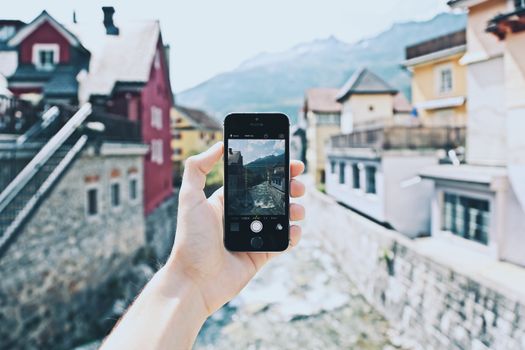
The crisp mountain air of Patagonia, the vibrant chaos of a Moroccan souk, the serene beauty of a sunrise over the Amalfi Coast – these are the moments we travel for. We snap photos, determined to bottle that feeling, that color, that sheer magic. But how many times have you returned home, uploaded your camera roll, and felt a pang of disappointment? The sky wasn't quite as blue, the ancient ruins looked a little flat, and that once-in-a-lifetime selfie with a friendly alpaca was… well, a bit dull.
I’ve been there. For years, my travel photos were a collection of "good enoughs." They captured the scene, yes, but they rarely captured the soul of the moment. They lacked that professional polish, that vibrant pop that made me double-tap on other people's feeds. I envied the travel bloggers whose every shot looked like it belonged on a postcard. I thought it was their fancy gear, their secret photography school, or maybe just their innate artistic talent.
Then, about five years ago, standing on a windswept cliff in Iceland, attempting to capture the ethereal glow of the Northern Lights with my phone, I had an epiphany. My phone could capture it, but it couldn't interpret it. It couldn't bring out the subtle greens and purples that my eyes were drinking in. That night, huddled in my rental car, I downloaded my first serious mobile editing app. And truly, my friends, it changed my life forever.
These weren't just "filters." These were powerful, intuitive tools that allowed me to take my raw travel memories and transform them into the vivid, breathtaking images they deserved to be. They didn't just change my photos; they changed how I travel, making me more observant, more intentional, and ultimately, more capable of preserving and sharing the magic.
Today, I'm peeling back the curtain to share the exact apps and techniques that took my travel photography from amateur to "OMG, where is that?!" Get ready to bookmark this, because your travel pics are about to get a serious glow-up.
---
The Foundation: Why Edit? It's More Than Just Filters (It's About Storytelling!)
Let's get one thing straight: photo editing isn't about fabricating reality. It's about enhancing it, refining it, and bringing your vision to life. Think of it like this: a chef doesn't just throw raw ingredients on a plate. They season, they cook, they plate with care. Editing is the seasoning, cooking, and plating of your visual story.
Our cameras, especially our phone cameras, are incredible, but they're not perfect. They often struggle with dynamic range (the difference between the brightest and darkest parts of a scene), color accuracy, and capturing the true mood. Editing allows you to:
- Correct imperfections: Adjust exposure, white balance, fix crooked horizons.
- Enhance natural beauty: Bring out the vibrancy of a sunset, the clarity of a mountain range, or the sparkle in someone's eyes.
- Create a consistent aesthetic: Develop a signature look for your feed that tells a cohesive visual story.
- Remove distractions: Ever had a perfectly composed shot ruined by a stray lamppost or a photobombing tourist? Healing tools are your best friend.
- Add mood and emotion: A slight color shift or vignette can transform a simple landscape into a dramatic masterpiece.
My journey started with a simple desire to make my photos look "better." It quickly evolved into understanding that editing is an integral part of the creative process, a final brushstroke that makes a good photo truly great. It’s how I ensure that when someone scrolls through my feed, they don’t just see a picture, they feel the place.
---
The Holy Trinity: My Top 3 Must-Have Apps That Changed Everything
If I could only recommend three apps for travel photography, these would be them. They form the backbone of my editing workflow and are responsible for 90% of the magic you see on my Tripsora posts and Instagram feed.
1. Adobe Lightroom Mobile (Free with Premium Options: ~$9.99/month for full CC features)
Why it's a game-changer:
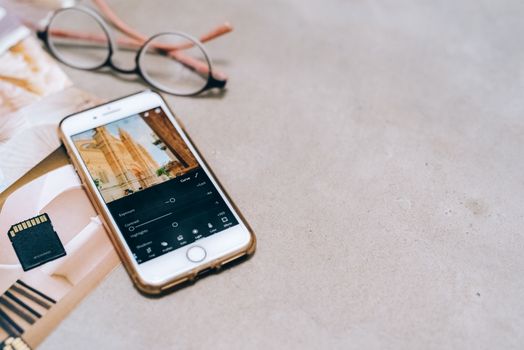
This is the powerhouse, the professional-grade tool condensed into a mobile app. If you're serious about taking your photos to the next level, Lightroom Mobile is non-negotiable. It offers unparalleled control over every aspect of your image.
My Personal Anecdote:
I remember a trip to Patagonia. We'd hiked all day to a viewpoint overlooking the iconic Fitz Roy peaks. The golden hour light was supposed to be spectacular, but a thin haze rolled in, making everything look flat and muted. I was devastated. Back at our remote lodge, I fired up Lightroom Mobile. Using the "Dehaze" slider, adjusting the "Highlights" and "Shadows," and subtly boosting the blues in the "HSL" (Hue, Saturation, Luminance) panel, I salvaged those shots. The peaks gained their sharp definition, the sky found its depth, and the memory was perfectly preserved. It felt like magic.
Key Features & How I Use Them:
- RAW Photo Support: If your phone shoots RAW (DNG files), Lightroom Mobile is fantastic for editing them, retaining maximum detail. This is crucial for dynamic travel scenes.
- Selective Edits: Want to brighten just the subject's face without overexposing the background? Or add drama to the sky without affecting the foreground? The selective adjustment tools (brushes, radial, and linear gradients) are incredible.
- HSL Panel: This is where you fine-tune specific colors. Make the ocean a deeper turquoise, the autumn leaves more vibrant, or mute distracting greens. It’s incredibly powerful for creating specific moods.
- Curves: For advanced users, the curves panel offers precise control over tones and contrast, allowing for subtle yet impactful adjustments.
- Presets: While I prefer manual adjustments, Lightroom's built-in presets are a great starting point, and you can even save your own custom edits as presets for consistent looks. Many travel bloggers also sell their custom presets!
- Geometry Tools: Essential for correcting wonky perspectives on architectural shots – no more leaning towers of Pisa (unless you want them to!).
Practical Tip:
Start by adjusting your exposure, highlights, and shadows. Then move to white balance to ensure colors are accurate. Only then dive into the HSL panel and selective edits. Don't be afraid to experiment!
2. Snapseed (Free)
Why it's a game-changer:
Developed by Google, Snapseed is a fantastic, intuitive, and free app that offers a surprising amount of professional-grade tools. It’s my go-to for quick, precise local adjustments and fixing pesky distractions.
My Personal Anecdote:
I was trying to get that iconic shot of the Eiffel Tower in Paris, but a small group of tourists kept wandering into my frame. I waited, I repositioned, but someone always seemed to be there. I finally snapped the shot, knowing I could fix it later. Back at my Airbnb, Snapseed's "Healing" tool was my savior. With a few careful swipes, those distracting tourists vanished, leaving me with a clean, postcard-perfect image. It felt like I had a magic wand!
Key Features & How I Use Them:
- Healing Brush: This is my favorite feature. It intelligently removes unwanted objects, blemishes, or distractions from your photos. It's incredibly effective for things like power lines, litter, or even small crowds.
- Selective Adjustments: Similar to Lightroom, but arguably even more intuitive for beginners. You can place "control points" on specific areas and adjust brightness, contrast, saturation, and warmth just for that spot.
- Perspective Tool: Crucial for architectural shots. It can correct converging lines and tilt, ensuring buildings look straight and grand.
- Tune Image: A great all-in-one tool for basic adjustments like brightness, contrast, saturation, ambiance, and warmth.
- Expand: Need a little more sky or foreground to perfect your composition? This tool intelligently fills in the expanded area.
- Double Exposure: For creative overlays and adding texture or subtle elements from another photo.
Practical Tip:
Use the "Healing" tool sparingly and zoom in close for precision. For selective adjustments, keep the radius of your control points relatively small to avoid affecting surrounding areas.
3. VSCO (Free with Premium Options: ~$19.99/year for VSCO X)
Why it's a game-changer:
If you're looking for that consistent, curated aesthetic that defines many Instagram feeds, VSCO is your best friend. It excels at subtle, film-like filters (they call them "presets") and offers excellent fine-tuning capabilities.
My Personal Anecdote:
During a trip to Bali, I was captivated by the lush, verdant rice terraces. My photos, however, often looked a bit too green, a bit too harsh. I wanted that dreamy, slightly muted, almost vintage feel. VSCO, with its extensive library of film-inspired presets, delivered exactly that. I found a few presets (my favorites are usually from the A or M series, like A6 or M5) that gave my rice field shots a consistent, ethereal glow, transforming them into art. It helped me tell a cohesive story of Bali's serene beauty.
Key Features & How I Use Them:
- Extensive Presets: VSCO's strength lies in its diverse range of high-quality presets that emulate classic film stocks. They are designed to be subtle and sophisticated, not overly dramatic like some Instagram filters.
- Fine-Tuning Tools: After applying a preset, you can still adjust exposure, contrast, saturation, clarity, sharpen, and more. This allows you to customize the preset to your specific image.
- Recipe Saving: Once you find a combination of preset and adjustments you love, you can save it as a "Recipe" to apply to future photos, ensuring consistency across your feed.
- Grain & Fade: These tools add a beautiful, analog film texture that can elevate the mood of your photos.
Practical Tip:
Don't just slap on a preset at 100%. Apply it, then reduce its intensity to around 50-70% and fine-tune from there. This gives you a natural, polished look.
---
Niche & Creative: Elevating Your Storytelling with Specialized Tools
While the "Holy Trinity" covers most of my needs, there are a few other apps I occasionally turn to for specific tasks or to add an extra layer of creativity.
4. Facetune / YouCam Perfect (Free with Premium Options: ~$4-7/month)
Why it's useful:
Let's be honest, sometimes we're jet-lagged, sometimes the lighting isn't flattering, and sometimes we just want to look our best in that epic travel selfie. These apps are primarily for portrait retouching.
My Personal Anecdote:
After a grueling 15-hour bus ride through the Peruvian Andes, I looked like I'd wrestled a condor. But then, a friendly alpaca ambled over for a selfie opportunity! I snapped the shot, knowing full well my undereye circles were competing with the alpaca's fluffy charm. A quick, subtle touch-up in Facetune (just a bit of skin smoothing and brightening under the eyes) saved that precious memory. The key word here is subtle – you want to look refreshed, not like an alien.
Key Features & How I Use Them:
- Smooth/Heal: For reducing blemishes or evening out skin tone.
- Whiten: Great for teeth (again, use with a light hand!).
- Details: To enhance eye sparkle or sharpen specific features.
- Reshape: I rarely use this, but it can subtly adjust facial features.
Practical Tip:
Less is always more. Aim for a natural enhancement, not a complete overhaul. Your goal is to look like yourself on a really good day, not a filtered fantasy.
5. PicsArt (Free with Premium Options: ~$4.99/month for Gold)
Why it's useful:
If you're feeling artistic and want to go beyond basic enhancements, PicsArt is a creative playground. It's fantastic for collages, adding text, stickers, or even creating surreal composites.
My Personal Anecdote:
On a trip to Italy, I took a classic shot of the Leaning Tower of Pisa. Later, I wanted to create something fun and whimsical for my Instagram Story. Using PicsArt's "Cutout" tool, I extracted my own silhouette from another photo, then layered it onto the Pisa shot, making it look like I was playfully "holding" the tower in my hand. It was a huge hit and incredibly fun to make!
Key Features & How I Use Them:
- Cutout Tool: Precisely cut out subjects from one photo to place them on another.
- Stickers & Text: A vast library of creative elements to add personality to your shots.
- Effects & Filters: Beyond basic filters, PicsArt offers artistic effects like sketch, magic, and canvas.
- Collage Maker: For combining multiple travel memories into one cohesive image.
- Background Changer: Easily swap out backgrounds for a completely different vibe.
Practical Tip:
Don't be afraid to experiment with PicsArt's more artistic features, especially for social media stories or creating unique travel postcards.
6. CapCut / InShot (Free with Premium Options: Variable)
Why it's useful (Bonus for Video!):
While not strictly photo editing, travel isn't just about stills anymore! Short-form video (Reels, TikToks, YouTube Shorts) is crucial for sharing dynamic travel experiences. CapCut and InShot are phenomenal, user-friendly mobile video editors.
My Personal Anecdote:
My trip to Tokyo was a whirlwind of neon lights, bustling markets, and serene temples. I had dozens of short video clips. Using CapCut, I quickly stitched them together, added trending audio, dynamic transitions, and text overlays to create a vibrant 30-second Reel that perfectly captured the city's energy. It went viral on my Instagram and brought in so many questions about my itinerary!
Key Features & How I Use Them:
- Intuitive Interface: Easy to cut, trim, and merge video clips.
- Music & Sound Effects: A huge library of royalty-free music and sound effects.
- Transitions: Smoothly move from one clip to the next.
- Text & Stickers: Add captions, titles, and fun elements.
- Speed Control: Create slow-motion or hyper-lapse effects.
- Filters & Adjustments: Basic color correction and filters for video.
Practical Tip:
Keep your video clips short (3-5 seconds each), use trending audio, and experiment with different transitions to keep your audience engaged.
---
My Workflow: From Camera Roll to Instagram-Ready in 5 Steps
Having all these apps is one thing; knowing how to use them efficiently is another. Here's my typical workflow for transforming a raw travel photo into a shareable masterpiece:
- Shoot Smart (and in RAW if possible!): The better your initial photo, the less you'll have to edit. Pay attention to light, composition, and focus. If your phone supports it, shoot in RAW (DNG) mode – it captures more data, giving you greater flexibility in editing.
- Lightroom Mobile: The Global Adjustments:
- Import your photo into Lightroom Mobile.
- Start with Light adjustments: Exposure, Highlights, Shadows, Whites, Blacks. Get the overall brightness and contrast right.
- Move to Color: Adjust White Balance (Temp, Tint) to ensure accurate colors. Then, fine-tune specific hues in the HSL panel.
- Add Effects: A touch of Clarity or Dehaze can work wonders. A subtle Vignette can draw the eye to your subject.
- Geometry: If it's an architectural shot, use the Upright tools to correct perspective.
- Snapseed: The Local Fixes & Details:
- Export your photo from Lightroom (usually as a high-quality JPEG or DNG if you want to keep editing non-destructively).
- Open it in Snapseed.
- Use the Healing tool to remove any distracting elements (tourists, trash, power lines).
- Apply Selective Adjustments to brighten a specific face, deepen a patch of sky, or desaturate a distracting color in a small area.
- Use Details to sharpen specific areas like eyes or textures.
- VSCO: The Aesthetic Polish (Optional, but often used):
- If I want a consistent, film-like aesthetic for my feed, I'll then open the image in VSCO.
- Apply a favorite Preset (e.g., A6, M5).
- Adjust the Preset Intensity and fine-tune basic settings like Exposure, Contrast, and Saturation to get the perfect look.
- Add a touch of Grain or Fade if it fits the mood.
- Final Review & Export:
- Take a moment to look at the photo objectively. Does it look natural? Does it evoke the feeling of the moment?
- Compare it to the original if you want.
- Export your masterpiece! I usually export at full resolution for maximum quality, then let Instagram compress it.
Consistency Tip:
Developing a personal editing style is key. Find a few presets or adjustment combinations you love and stick with them. This creates a cohesive and recognizable look for your travel stories.
---
Beyond the App: Pro Tips for Stunning Shots (Even Before Editing!)
Remember, editing can enhance a photo, but it can't magically create one. The best edits start with a solid foundation.
- Chase the Light: The "Golden Hour" (the hour after sunrise and before sunset) offers soft, warm, magical light. Overcast days provide diffused, flattering light. Avoid harsh midday sun if possible.
- Clean Your Lens! Seriously, this is the simplest and most overlooked tip. Fingerprints, dust, and smudges will instantly degrade your photo quality. A quick wipe with a microfiber cloth makes a huge difference.
- Mind Your Composition: Use the rule of thirds, leading lines, symmetry, and framing to create visually interesting shots. Don't just point and shoot!
- Shoot from Different Angles: Get low, get high, try different perspectives. A fresh angle can transform an ordinary scene into something captivating.
- Don't Over-Edit: This is crucial. The goal is to enhance, not to make your photo look artificial or overly processed. Authenticity resonates more than hyper-realism.
- Back Up Your Photos: Whether it's to Google Photos, iCloud, or an external hard drive, always back up your precious travel memories!
---
Unleash Your Inner Travel Photographer!
Discovering these photo editing apps wasn't just about making my Instagram feed prettier. It was about unlocking a new level of creativity, allowing me to truly translate the awe and wonder of my travels into tangible, shareable art. They've empowered me to tell richer, more vibrant stories, and to preserve my memories with a clarity and beauty I once thought was only possible for professional photographers with expensive gear.
These apps changed my life forever by changing how I see the world, how I capture it, and how I share it. And they can do the same for you. So, what are you waiting for? Download one (or all!) of these incredible tools today. Experiment, play, and watch your travel photos transform from ordinary snapshots into breathtaking visual narratives.
Which of these apps are you most excited to try? Or do you have a secret favorite I missed? Share your thoughts and your transformed travel pics with us on Instagram using #TripsoraTransforms and tag @Tripsora! Let's inspire each other to capture the world's beauty, one perfectly edited photo at a time!
---