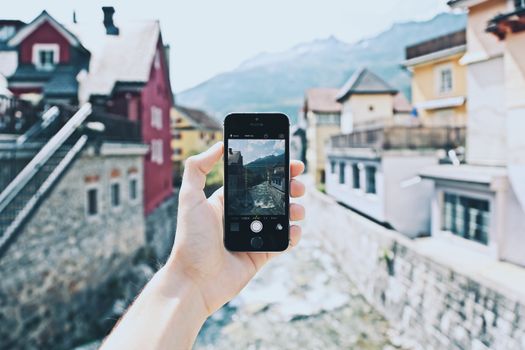
Remember that moment? You’re standing in front of an iconic landmark – let’s say the vibrant blue domes of Santorini, bathed in the golden hour glow. You snap a photo, convinced you’ve captured pure magic. Later, you look at it on your phone, and… it’s just okay. The sky isn't quite as blue, the whites aren't quite as crisp, and there's a distracting tourist photobombing your perfect shot. Sound familiar?
I’ve been there. Countless times. For years, I’d scroll through Instagram, mesmerized by the stunning, almost painterly travel photos shared by locals and fellow adventurers. How did their shots of the exact same places look so incredibly vibrant, so perfectly composed, so utterly magazine-worthy, while mine felt… well, like a casual snapshot?
The truth, my fellow wanderers, is a secret weapon many locals and travel pros guard closely: a handful of powerful, often surprisingly easy-to-use, photo editing apps. These aren't just for adding a cheesy filter; these are tools that can transform a good photo into a breathtaking one, making it look like you hired a professional photographer (or, more accurately, like you are one). And today, I’m pulling back the curtain on these game-changing apps that will elevate your travel photography from amateur to awe-inspiring. Get ready to make your friends wonder if you secretly became a professional photographer on your last trip!
The Foundation: Why Editing Isn't Cheating, It's Enhancing Reality
Before we dive into the apps, let's address the elephant in the room: "Isn't editing fake? Shouldn't photos be authentic?" This is a common misconception, especially in the age of Instagram vs. Reality debates. But here's the thing: our eyes see the world with incredible dynamic range and color perception that no camera, especially a smartphone camera, can fully replicate.
Editing isn't about fabricating a scene that wasn't there; it's about recovering the beauty that was there but the camera missed. It's about bringing out the true vibrancy of that sunset, correcting the unflattering shadows, or simply removing a distracting element that pulls focus from the main subject. Think of it as developing a film negative – it's an essential part of the photographic process.
My journey with photo editing started out of sheer frustration. My first few trips to Southeast Asia yielded thousands of photos, but only a handful I truly loved. I saw the incredible colors of Thai temples, the bustling energy of Vietnamese markets, but my photos felt flat. It wasn't until a local photographer in Hoi An, Vietnam, showed me a quick edit on his phone that I realized the power I was missing. He took a photo of the lantern-lit streets we were standing on – a photo I'd just taken myself – and in literally 30 seconds, transformed it from a decent snap into a glowing, magical scene. That was my "aha!" moment. Since then, these apps have become as essential to my packing list as my passport.
The Core Trio: Essential Apps for Every Traveler's Toolkit
If you're only going to download three apps, make them these. They cover the vast majority of your editing needs, from basic adjustments to advanced touch-ups.
1. Adobe Lightroom Mobile (Free & Premium Subscription)
Why it's a game-changer:
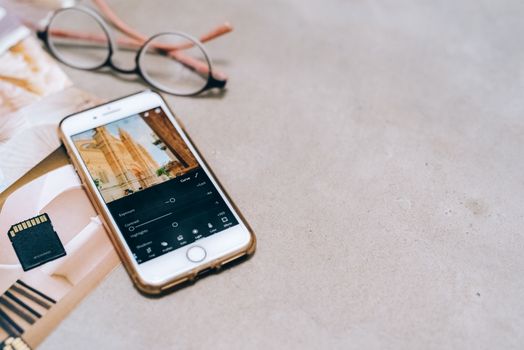
This is my absolute workhorse, the app that lives on my phone's home screen. Lightroom Mobile brings the power of Adobe's desktop software to your fingertips. It's incredibly robust, offering precise control over every aspect of your image.
- What it does:
- Presets: Apply professional-grade filters with a single tap, then fine-tune them. You can even buy or create your own! This is how many travel bloggers achieve a consistent look across their feed.
- Selective Adjustments: Want to brighten just the sky, or make the ocean more vibrant without affecting the sand? Lightroom lets you do that with radial and linear gradients, or by brushing over specific areas.
- HSL (Hue, Saturation, Luminance): This is where the magic truly happens. You can individually adjust the hue (color), saturation (intensity), and luminance (brightness) of specific colors. Make those blues in the Mediterranean pop without oversaturating everything else, or deepen the reds of a Moroccan spice market.
- Healing Brush: While not as powerful as Snapseed's, it's great for removing small blemishes or dust spots.
- RAW Support: If your phone shoots in RAW (like many newer iPhones and Androids), Lightroom can edit these high-quality files, giving you maximum flexibility.
- My personal anecdote: I once took a photo of the iconic cliff-edge houses in Oia, Santorini, at sunset. The light was beautiful, but my phone camera couldn't quite capture the subtle gradients of the sky or the crisp white of the buildings without blowing out the highlights or crushing the shadows. With Lightroom, I used selective adjustments to bring back detail in the sky, boosted the whites, and tweaked the blues and oranges using HSL. The result? A photo that perfectly mirrored the breathtaking scene I witnessed, not just a flat representation.
- Price: Free for basic editing features. A Creative Cloud subscription (around $9.99/month, often bundled with Photoshop) unlocks premium features like cloud storage, selective adjustments, and advanced healing. For serious travelers, the premium features are absolutely worth it.
2. Snapseed (Free)
Why it's a game-changer:
Google's Snapseed is a powerhouse, and the best part? It's completely free. It excels at precise, intuitive adjustments and has a few unique tools that make it indispensable.
- What it does:
- Healing Brush: This is Snapseed's undisputed star. It's incredibly effective at removing unwanted objects, people, or imperfections from your photos. A stray hand, an ugly sign, or even a distant tourist can often be "healed" away with surprising accuracy.
- Selective Adjustments: Similar to Lightroom, but with an incredibly user-friendly interface. You can pinpoint specific areas and adjust brightness, contrast, saturation, and structure.
- Perspective Tools: Crooked horizons? Leaning buildings? Snapseed can correct perspective distortions, making your architectural shots look perfectly straight and professional.
- Brush Tool: Great for dodging and burning (selectively lightening or darkening areas) or adjusting saturation on specific parts of your image.
- My personal anecdote: Standing at the base of the Eiffel Tower, trying to get that perfect shot, I was surrounded by hundreds of people. Every photo had at least three strangers in it. I almost gave up, but then I remembered Snapseed's healing tool. Back at my Airbnb, I painstakingly (but easily!) "erased" a dozen tourists from around my friend and the tower. The final image looked like we had the place to ourselves. It felt like magic, and that's a secret locals definitely don't want you to know – how to make their usually crowded landmarks look serene!
- Price: 100% Free. No ads, no in-app purchases. A true gift from Google.
3. VSCO (Free & Premium Subscription)
Why it's a game-changer:
If you're chasing that coveted "moody," "film-like," or "aesthetic" vibe that dominates many travel feeds, VSCO is your go-to. It's less about technical precision and more about artistic expression through its incredible array of filters.
- What it does:
- Film-Inspired Presets: This is where VSCO shines. Its filters (called "presets") are designed to mimic classic film stocks, offering beautiful, nuanced color grading that feels natural and artistic, not over-processed.
- Subtle Adjustments: While it has basic editing tools (exposure, contrast, saturation), they're designed to complement the filters rather than overpower them.
- Community: VSCO has its own thriving community where you can discover new styles and get inspiration.
- My personal anecdote: I was wandering through the vibrant, chaotic souks of Marrakech. The colors were incredible – spices, textiles, pottery – but my photos felt a bit too "digital." I wanted that rich, slightly desaturated, warm glow that felt timeless. I experimented with VSCO's A6 and C1 presets, then tweaked the grain and fade. Suddenly, my photos transported me back to that ancient, mystical atmosphere, looking like they could have been taken decades ago. It's perfect for capturing the soul of a place.
- Price: Free for a selection of basic filters and editing tools. A VSCO X membership (around $29.99/year) unlocks their full library of over 200 presets and advanced editing features.
Specialized Tools: Elevating Specific Shots & Fixing Annoyances
While the core trio handles most things, these apps offer specialized capabilities that can be incredibly useful for specific situations or for taking your edits to the next level.
4. TouchRetouch (One-Time Purchase)
Why it's a game-changer:
If Snapseed's healing brush isn't quite cutting it for larger or more complex object removals, TouchRetouch is the professional-grade solution. It's a single-purpose app that does one thing incredibly well: removing unwanted elements.
- What it does:
- Object Removal: Seamlessly erase power lines, trash cans, annoying signs, or even large groups of people from your photos. It uses intelligent algorithms to fill in the background, making it look like the object was never there.
- Line Removal: Perfect for getting rid of telephone wires or fences that clutter your otherwise perfect landscape.
- Mesh Removal: Can even remove mesh fences while preserving the background.
- My personal anecdote: On a road trip through Iceland, I captured a stunning shot of a waterfall cascading into a glacial river. The only problem? A bright orange safety cone had been left right in the foreground, completely ruining the natural beauty. Snapseed struggled with it due to its size and stark color. TouchRetouch, however, made it vanish in seconds, leaving behind a pristine, untouched landscape. It’s the ultimate "clean up" tool, ensuring your travel photos are truly about the destination.
- Price: A small, one-time purchase (usually around $1.99 - $3.99). Absolutely worth every penny for the frustration it saves.
5. PicsArt (Free & Premium Subscription)
Why it's a game-changer:
For those who like to get creative beyond just color correction, PicsArt is a fantastic all-in-one photo and video editor with a huge array of tools for collages, stickers, text, and even AI-powered transformations.
- What it does:
- Collages & Layouts: Create stunning photo collages to tell a more complete story.
- Stickers & Text: Add fun, custom elements to your photos.
- Background Changer/Remover: Easily swap out backgrounds or remove them entirely for creative composites.
- AI Tools: Offers AI-powered effects like turning photos into cartoons, creating avatars, or enhancing details.
- Drawing Tools: Unleash your inner artist with brushes and layers.
- My personal anecdote: Exploring the street art scene in Berlin, I wanted to create something a bit more dynamic than just a single photo. I used PicsArt to combine several close-up shots of graffiti with a wider shot of the street, adding some cool text overlays about the city's artistic vibe. It transformed a simple collection of photos into a vibrant, shareable piece of digital art that perfectly captured the essence of the experience.
- Price: Free with ads and basic features. PicsArt Gold subscription (around $4.66/month or $55.99/year) unlocks all premium features, removes ads, and provides exclusive content.
The "Local Secret" Techniques: Beyond Just Filters
Having the apps is one thing, knowing how to use them like a pro is another. These are the techniques that truly make your photos stand out and often involve making subtle, yet powerful, adjustments.
1. The Power of Presets (and Crafting Your Own Signature Style)
Presets are pre-saved sets of adjustments that you can apply to your photos with a single tap. They're incredibly efficient and are the secret behind many Instagram feeds having a consistent, cohesive look.
- How to use them: Many apps like Lightroom and VSCO come with built-in presets. Start by experimenting with these to find a style you like.
- Creating your own: Once you've edited a photo to perfection, you can save those adjustments as your own custom preset in Lightroom. This is invaluable! Now, every photo you take can instantly adopt your unique style, creating a recognizable brand for your travel adventures. This is a pro-level move that truly sets your photos apart.
- Buying presets: Many travel bloggers and photographers sell their custom presets. This is a great way to jumpstart your editing game with a professional look. Just search online for "Lightroom travel presets."
2. Selective Adjustments: Guiding the Viewer's Eye
This is the art of directing attention. Instead of brightening the entire photo, use selective tools (like those in Lightroom or Snapseed) to:
- Brighten your subject: Make your friend pop against a busy background.
- Enhance specific colors: Make the blue of the sky more vivid, or the green of the jungle more lush, without over-saturating everything.
- Create depth: Darken the edges of your photo slightly (a technique called vignetting) to draw the eye towards the center.
- Rescue highlights/shadows: Bring back detail in an overexposed sky or reveal hidden elements in deep shadows.
This targeted approach makes your photos look more professional and intentional, just like a local photographer who knows exactly what they want to highlight in their city.
3. Perspective Correction: Straightening Out the World
Nothing screams "amateur" quite like a crooked horizon or a building that looks like it's falling over.
- Horizon line: Always check your horizon! Use Snapseed's rotate tool or Lightroom's geometry panel to ensure it's perfectly level.
- Architectural shots: When shooting tall buildings, they often appear to lean inwards due to lens distortion. Apps like Snapseed (under "Perspective") and Lightroom Mobile (under "Geometry") have tools to correct this, making your structures look perfectly upright and grand. This simple fix makes a huge difference in the professionalism of your urban travel photos.
4. The Art of Subtraction: Removing Distractions (The Real "Local Secret")
This is where the "locals don't want tourists to know" part truly comes in. Imagine visiting a breathtaking vista that’s usually teeming with people, or a beautiful street scene marred by an ugly trash can or a tangle of power lines. Locals often know how to capture these spots at off-peak hours, but even they can't avoid every distraction. This is where your healing and object removal tools come in.
- Photobombers: Use Snapseed's or TouchRetouch's healing brush to subtly remove unwanted people from your background. You'd be amazed how a seemingly crowded scene can be transformed into a serene landscape with a bit of patience.
- Clutter: Power lines, road signs, overflowing bins – these can all detract from the beauty of your shot. Master the healing tools to clean up your frame, making your destination look pristine and idyllic.
- Small imperfections: Dust on your lens, a random piece of litter on the ground – these minor details can be effortlessly zapped away, leaving a perfectly polished image.
This technique is about presenting the essence of a place, unmarred by the visual noise of everyday life. It's about showing the beauty you saw and felt, even if your camera initially captured a bit of chaos.
Workflow & Best Practices: Making Editing Easy and Efficient
Now that you're armed with the apps and techniques, here are a few tips to integrate editing seamlessly into your travel photography routine:
- Shoot in RAW (If Your Phone Allows): RAW files contain much more image data than standard JPEGs, giving you far more flexibility when editing, especially for recovering detail in highlights and shadows. Check your phone's camera settings or use a third-party camera app like Halide (iOS) or Open Camera (Android) to shoot RAW.
- Develop a Consistent Style: Don't just slap on random filters. Think about the overall mood you want to convey. Do you prefer vibrant and punchy, or muted and moody? Developing a consistent style with your presets makes your entire travel feed look more professional and cohesive.
- Edit in Batches: If you have many similar photos (e.g., from the same location with similar lighting), edit one to perfection, then copy and paste its settings to the others in Lightroom. You'll only need to make minor tweaks. This saves a huge amount of time.
- Don't Over-Edit: This is crucial. The goal is to enhance, not to create something artificial. Avoid oversaturation, extreme clarity, or unnatural skin tones. A good edit should feel natural and elevate the original photo without screaming "I was edited!"
- Back Up Your Originals: Always keep your original, unedited photos. You never know when you might want to revisit an image with a different editing style.
Conclusion: Your Travel Photos, Transformed
So there you have it – the secret arsenal of photo editing apps and techniques that can transform your travel photos from ordinary snapshots into breathtaking works of art. These aren't just tools for professional bloggers; they're for anyone who wants to truly capture and share the magic of their adventures.
From bringing out the vibrant hues of a sunset in Santorini with Lightroom to seamlessly removing distracting tourists from your perfect Eiffel Tower shot with Snapseed, these apps empower you to tell your travel stories with unparalleled visual impact. Stop letting your camera limit your memories!
It's time to download these apps, experiment, and unleash the full potential of your travel photography. Trust me, once you start, you'll wonder how you ever traveled without them.
Now it's your turn!
Download these apps, pick your favorite travel photo that you thought was "just okay," and give it a glow-up. Share your incredible "before & after" transformations with us on Instagram using #TripsoraTransforms and tag @TripsoraOfficial. We can't wait to see your stunning new travel masterpieces!
---